Getting Started Guides for Tag S and Tag L Trackers
Step-by-step instructions for setting up the Truvami Tag S and Truvami Tag L devices.
Getting Started with Tag S
Step-by-step instructions about how to set up the Truvami tag S.

Version: 1.0.1
Date: 2024-09-22
1. Charge the Truvami® Tag S
Charge the device using a standard USB-C cable.
2. Press the button in the center to activate the tracker
Press and hold the button for 10 seconds. When the amber LED starts blinking, the tracker has been successfully activated.

3. Click the activation link you received via email
You will be redirected to https://dashboard.truvami.com, where you can set your password.
Tag S Troubleshooting
If the device fails to connect, try the following:
1. Check your LoRaWAN coverage
If applicable, ensure your LoRaWAN gateway is powered on. If you are using your own network server, verify that data is being received.
2. Check if the battery is fully charged
Charge the device using a standard USB-C cable, then repeat the process starting from step 2.
Need Support?
For support, please submit a ticket. We will respond as quickly as possible.
Getting Started with Tag L
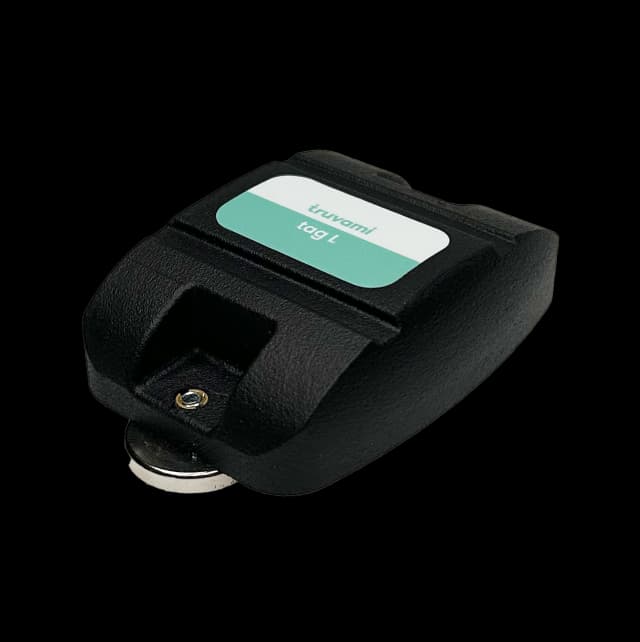
Step-by-step instructions about how to set up the Truvami tag L.
Versions: 1.0.0
Date: 2024-06-20
1. Charge the Truvami® tag L
The tag L can be charged with a standard USB-C cable.
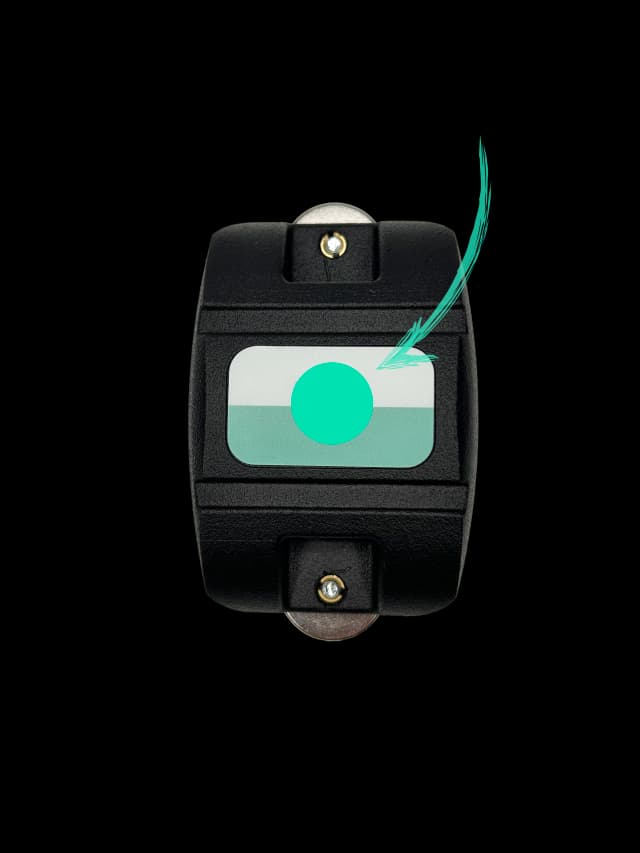
2. Hold a magnet to the top of the device to activate the tracker
Hold it for 10 seconds. Upon successful activation, you should hear a melody.
3. Click the activation link you received via email
You will be redirected to https://dashboard.truvami.com, where you can set your password.
Tag L Troubleshooting
If the device fails to join the network, try the following:
1. Check your LoRaWAN coverage
If applicable, ensure your LoRaWAN gateway is powered on. If you are using your own network server, verify that data is being received.
2. Check if the battery is fully charged
Charge the device using a standard USB-C cable, then repeat the process starting from step 2.
Need Support?
For support, please submit a ticket. We will respond as quickly as possible.